
If you create screen recordings regularly, you probably know that recording the video is only part of the job.
The actual editing can take much longer.
You may need to zoom in on important parts of the screen, make the mouse cursor easier to follow, cut unnecessary pauses, add subtitles, clean up the audio, and make sure viewers can understand what you are doing.
FocuSee is built around this problem.
It combines screen recording with a collection of editing and AI features designed to reduce some of the manual work that normally comes after recording.
I wanted to take a closer look at what FocuSee offers, how its workflow works, what type of content it is best suited for, and whether its plans make sense for creators, educators, developers, marketers, and other users who work with screen recordings.
You can use FocuSee to record almost anything happening on your screen, whether you are creating a YouTube tutorial, online course, software or SaaS demo, coding video, WordPress walkthrough, product review, presentation, or client training video.
You can record a complete process and use features such as automatic zoom, cursor effects, annotations, subtitles, webcam recording, and the teleprompter to make the recording easier to follow.
For freelancers, educators, developers, marketers, and content creators, it can also be useful for recording quick demonstrations, explaining a workflow, or showing someone how to complete a task without having to create a separate video editing workflow.
Why Use an AI Screen Recorder?
A traditional screen recording workflow can be fairly straightforward:
Record the screen, save the video, open an editor, find the important sections, add zooms, adjust the cursor, cut mistakes, add captions, improve the audio, and finally export the video.
None of those tasks is particularly difficult on its own.
The problem is the amount of time they can consume when you create videos frequently.
FocuSee’s approach is to automate some of these tasks.
For example, its automatic zoom can focus attention on important actions. Its cursor effects can make mouse movements easier to follow. Its AI features can help with subtitles, voice enhancement, and removing filler words and pauses.
You still have the option to edit the result, but the idea is to spend less time doing repetitive work.
That is probably the most important thing to understand about FocuSee.
It is not just about recording your screen. It is about reducing the amount of work between recording and the finished video.
FocuSee vs. Traditional Screen Recording
A basic screen recorder and FocuSee can both accomplish the same fundamental task: recording what happens on your screen.
The difference becomes more noticeable after the recording is finished.
With a basic screen recorder, the workflow usually looks something like this:
Record → Save the video → Open a video editor → Edit the recording → Add effects → Add captions → Export
There is nothing wrong with this approach.
In fact, it can be the better option if you already have a video editing workflow that you are comfortable with.
The problem is that every additional step takes time.
If you create screen recordings regularly, you may find yourself repeatedly performing the same tasks, such as adding zoom effects, adjusting the cursor, cutting pauses, creating subtitles, and cleaning up the audio.
FocuSee brings many of these tasks into the same application.
Its workflow can look more like:
Record → Edit and enhance the recording in FocuSee → Review → Export
The advantage is not that FocuSee completely eliminates video editing.
You still need to review your video and make changes when necessary.
The advantage is that some repetitive editing tasks can be automated or handled without moving the recording into another application.
Which approach is better?
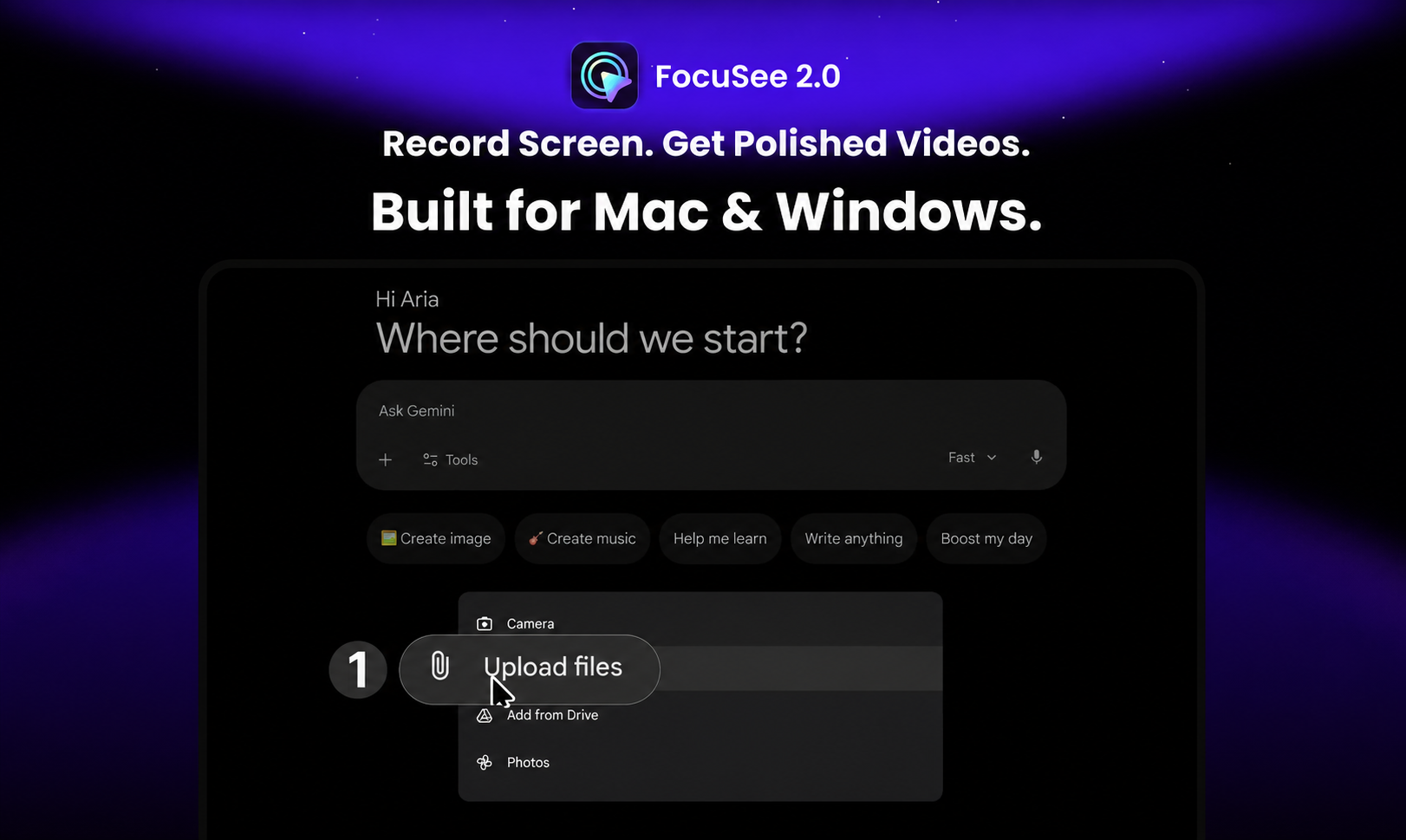
It depends on your workflow. A traditional screen recorder is enough for basic recording and manual editing. FocuSee is better suited to frequent screen recording when you want recording, editing, automatic effects, and AI features in one place.
FocuSee Features
Automatic Zoom
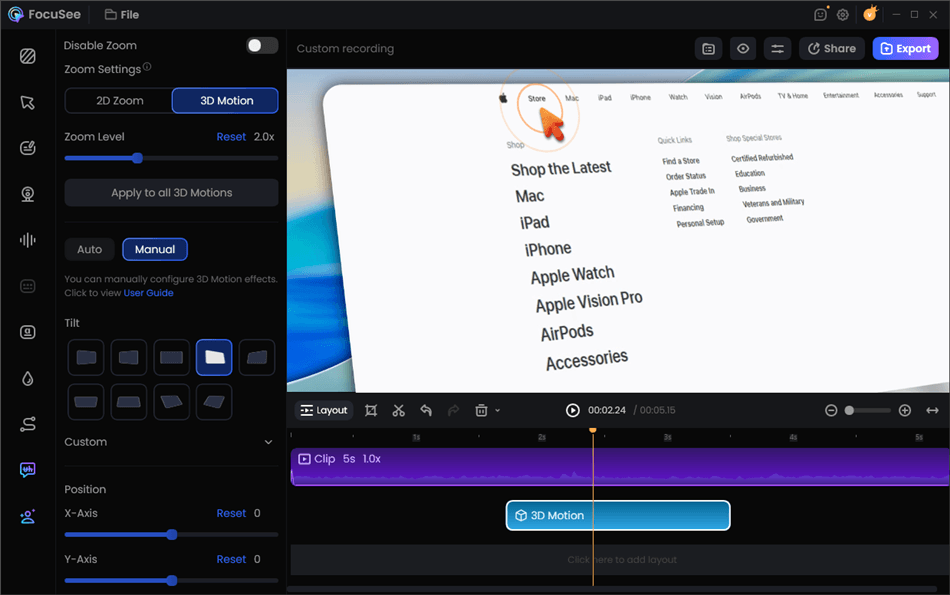
One of the features that stands out in FocuSee is automatic zoom.
When you demonstrate software, viewers need to see exactly where you are clicking or what you are changing. This can become difficult when the entire desktop is visible and the interface contains small buttons or controls.
FocuSee can automatically highlight important actions with zoom effects.
The feature can focus on key actions without requiring you to manually create every zoom point. That can be useful for software tutorials, website walkthroughs, product demonstrations, and educational videos.
You can also make adjustments to the recording instead of simply accepting the automatically generated result.
For someone creating several tutorials, reducing the number of manual zoom adjustments could save a reasonable amount of editing time.
Cursor Effects
The mouse cursor is an important part of most screen tutorials. If a viewer cannot easily see where the cursor is moving, they may miss the action you are explaining.
FocuSee includes cursor animation and other cursor-related effects designed to make screen interactions easier to follow.
This is especially useful when explaining a process step by step. For example, if you are showing someone how to change a setting in WordPress, pointing out the exact button or menu can make the explanation much easier to understand.
Annotations and Callouts
Sometimes you need more than a zoom effect. You may want to add an arrow, a shape, text, or another visual indicator to explain something.
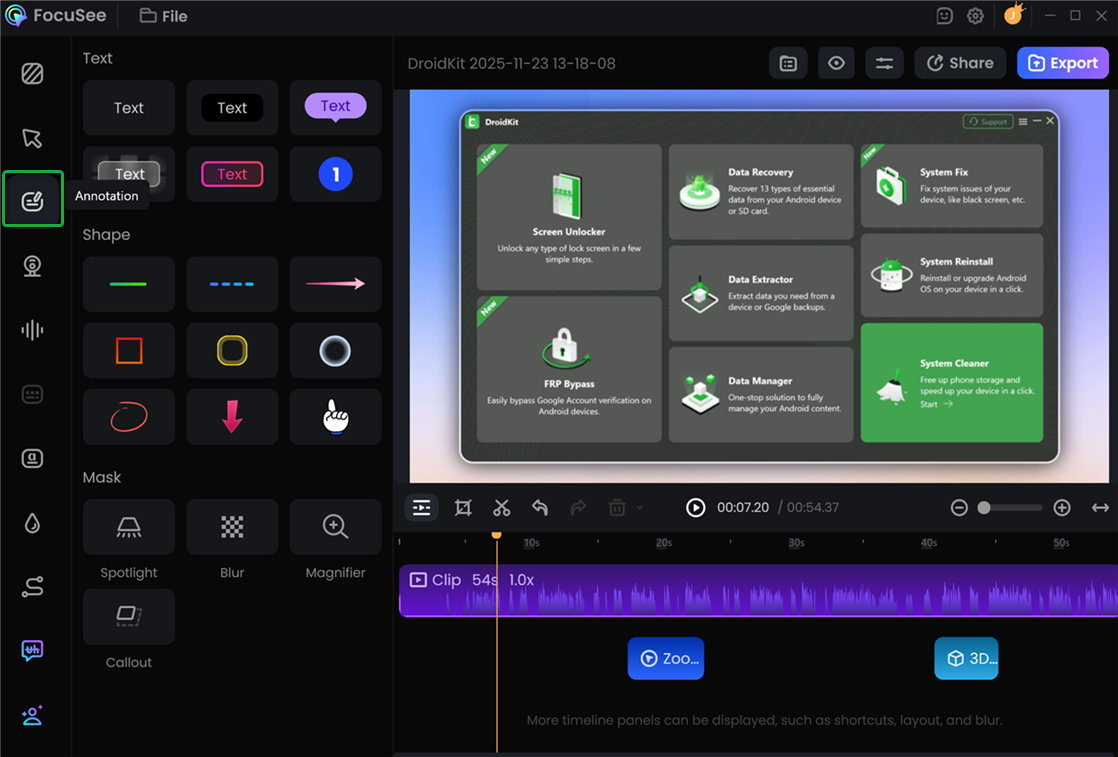
FocuSee includes an annotation suite with tools such as text, shapes, arrows, callouts, and a magnifier.
There is also a blur masking feature that can be useful when you need to hide information from a recording.
That can matter when creating public tutorials that contain email addresses, account information, or other details that should not appear in the final video.
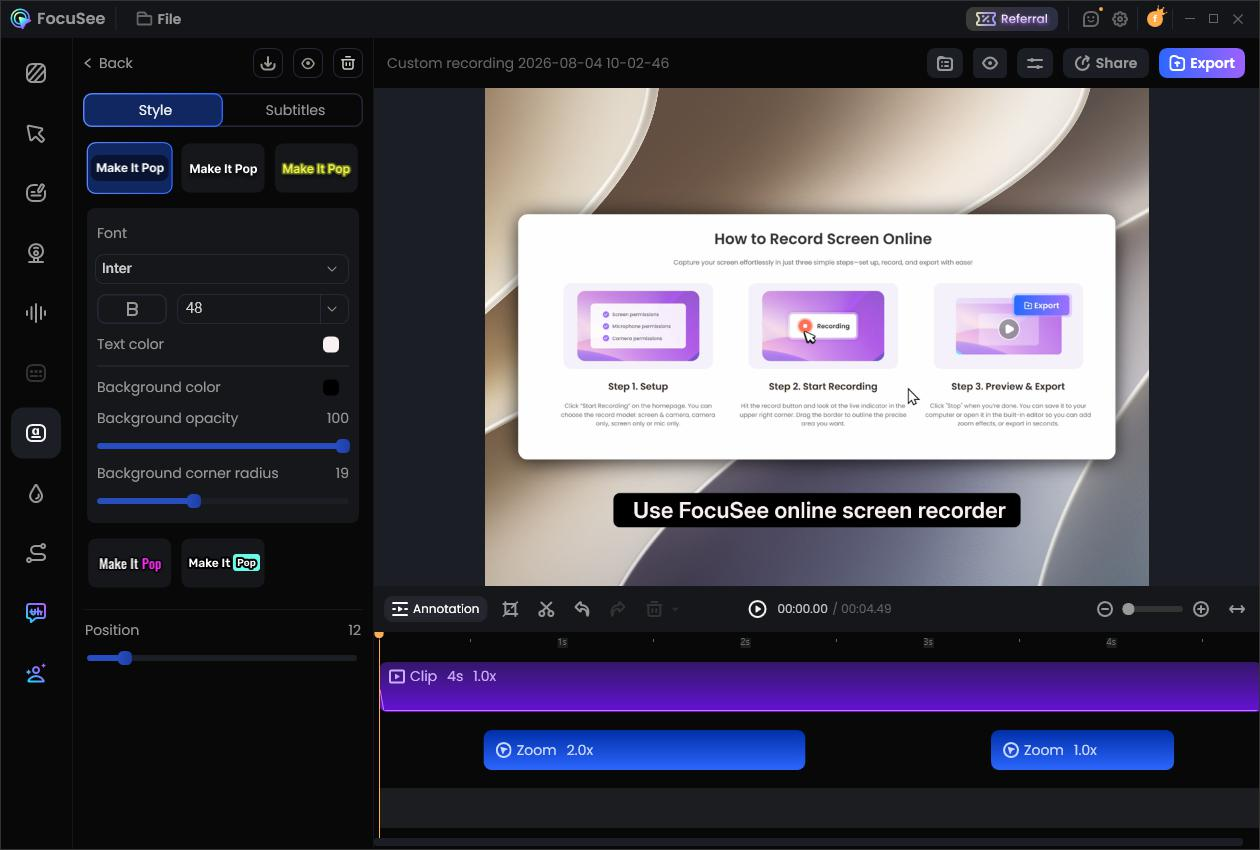
AI Subtitles
Subtitles can make screen recordings easier to follow, especially when the video contains a lot of spoken instructions.
FocuSee includes automatic subtitle generation. Its current Advanced plan supports AI subtitle generation in more than 55 languages.
The important part here is that automatically generated subtitles should still be reviewed before publishing. Speech recognition can make mistakes, particularly with technical terms, product names, accents, or unusual words.
So I would treat AI subtitles as a time-saving starting point rather than something that should always be published without checking.
FocuSee also provides subtitle editing tools, which give you the option to correct the generated text and adjust its style.
It is also worth knowing that AI subtitles use AI credits when you use the Advanced model. FocuSee’s current documentation lists the Advanced model at 1 AI credit per minute. The software also provides a local subtitle model that can be used without AI credits.
AI Voice Enhancement and Noise Reduction
Audio quality can make a surprisingly large difference to a tutorial.
A viewer may tolerate simple screen graphics, but unclear narration or distracting background noise can make a video difficult to watch.
FocuSee includes AI voice enhancement and AI noise reduction. These tools are intended to improve the clarity of recorded narration and reduce unwanted background noise.
Of course, software cannot completely replace good recording conditions. A reasonably quiet room and a decent microphone are still useful.
But having audio cleanup available in the same application means you may not need to move the recording into another program for basic audio processing.
Some of these AI features use AI credits, so users who plan to rely heavily on them should check their credit balance and usage before processing a large number of videos.
Remove Filler Words and Pauses
Natural speech is not always perfectly clean. When recording a tutorial, you might say “um,” pause to think, repeat a sentence, or leave a longer silence between two sections.
FocuSee includes an AI feature for detecting and removing filler words and pauses.
This can be useful if you prefer to record naturally instead of trying to deliver every sentence perfectly on the first attempt.
Rather than stopping the recording every time you make a small mistake, you can continue speaking and clean up some of those unnecessary sections during editing.
The result should still be reviewed before export, because automatic editing can sometimes remove something you intended to keep.
FocuSee lists filler word and silence removal among the AI features that consume AI credits.
Screen and Webcam Recording
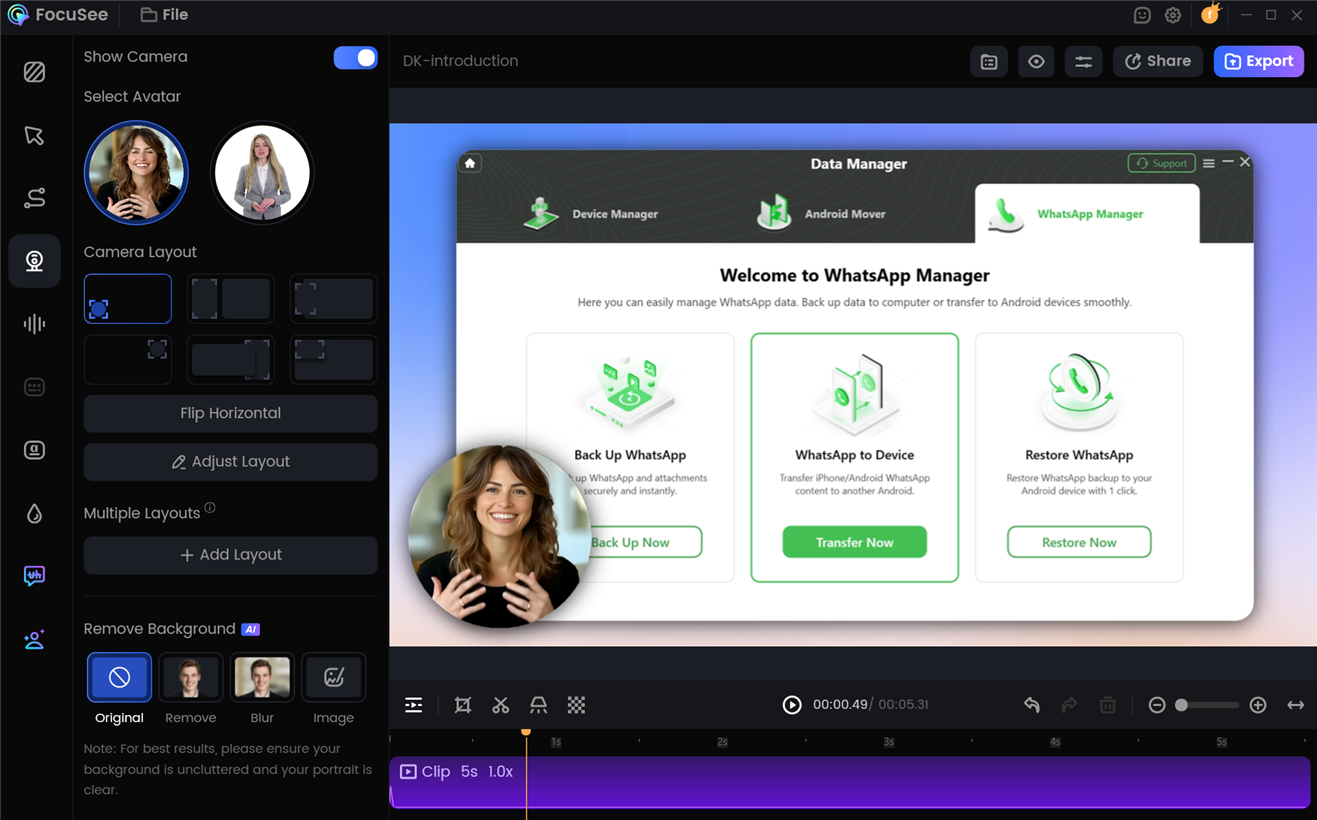
FocuSee can record your screen and webcam together. This gives you several options for presenting your content.
You can create a screen-only tutorial, show yourself alongside the screen, or use different camera layouts depending on the type of video you are creating.
This can be useful for:
· YouTube tutorials
· Online courses
· Software demonstrations
· Presentations
· Product walkthroughs
· Training videos
If your content benefits from seeing the person explaining the process, webcam recording can make the video feel more personal.
If you prefer not to appear on camera, you can simply focus on the screen recording.
Built-in Teleprompter
Another feature that may be useful for people who create scripted content is the built-in teleprompter.
You can use a script while recording instead of keeping a separate document open and repeatedly switching between applications.
This can be useful for product demonstrations, educational videos, presentations, and scripted YouTube content.
It does not mean you need to read every video word for word. For many creators, a short outline or set of talking points may be enough.
But when you do need a full script, having the teleprompter inside the recording workflow can be convenient.
Smart Typing Zoom and Speed Up
Typing is common in many screen recordings.
Think about coding tutorials, AI prompt demonstrations, search tutorials, form filling, and document editing. Watching someone type every character can make a tutorial unnecessarily long.
FocuSee 2.4 includes smart typing detection that can identify typing sequences. You can speed up detected typing sections and apply automatic zoom to the relevant input area.
That could be particularly useful for coding and AI tutorials where the text being entered is important but does not need to be shown at normal typing speed.
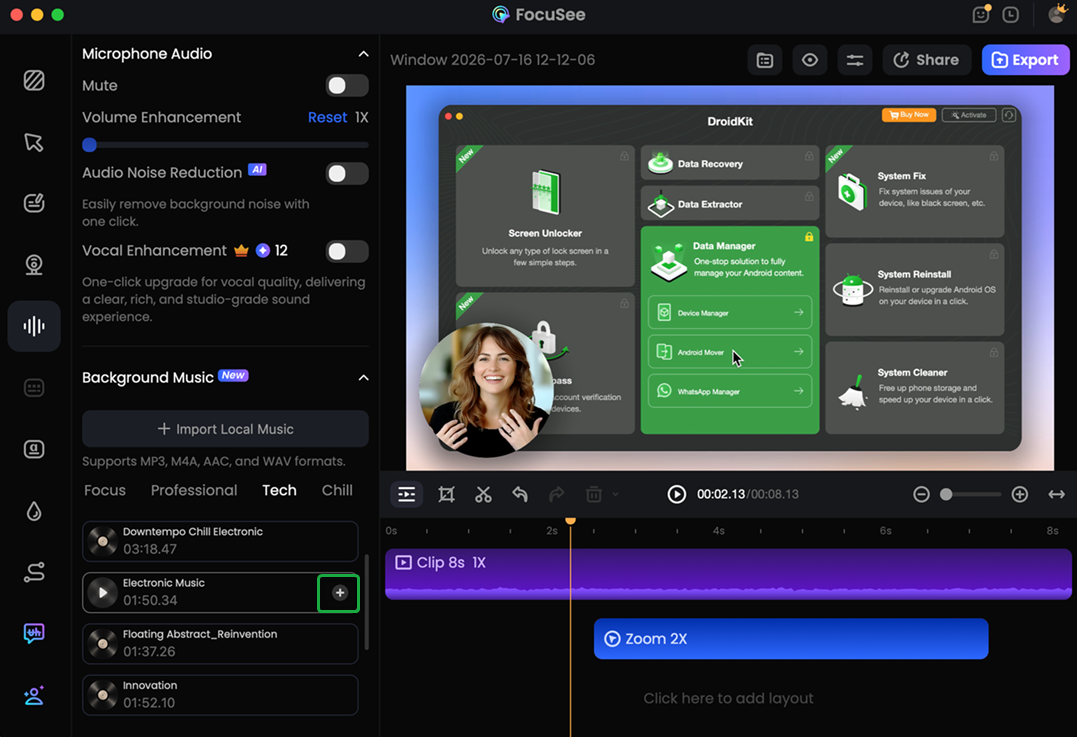
Background Audio
FocuSee 2.4 added background audio functionality.
You can add background music or other audio to a project and make basic adjustments such as trimming, volume changes, and fade effects.
Its background audio feature includes music from Pixabay, and users can also import their own audio files. This can be useful for videos that would otherwise feel too quiet, particularly when there is no continuous narration.
The key is to keep background music at an appropriate level. For tutorials, the explanation should remain the main focus.
Background Removal
FocuSee also includes background removal for webcam recordings. This can be useful if your physical recording environment is not suitable for a finished video.
Instead of showing everything behind you, you can remove or replace the background.
For creators recording from home, this can be a convenient alternative to setting up a dedicated background or green screen.
As with other automated visual effects, the final result can depend on lighting, camera quality, and the subject being recorded.
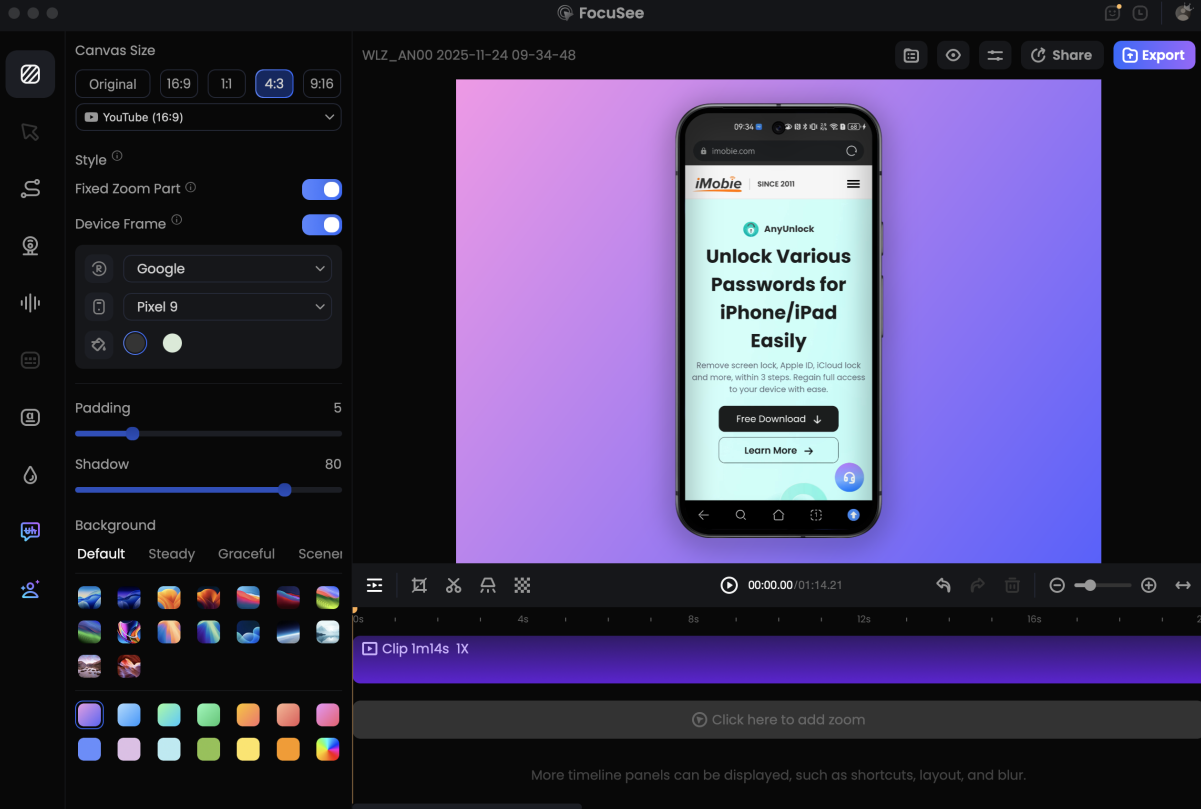
Mobile Device Recording
FocuSee can also be used to record mobile device screens.
This opens up another set of use cases for people who create mobile app tutorials, demonstrations, or walkthroughs.
For technology creators who cover both desktop and mobile applications, having mobile recording as part of the same tool can be convenient.
AI Avatars
FocuSee’s Advanced plan includes access to AI avatar features.
It offers more than 100 AI avatars, and the Advanced plan includes access to the feature and uses AI credits for generation. This is aimed at users who want to create certain types of videos without appearing on camera themselves.
There are practical uses for product explanations, educational content, presentations, marketing videos, and other scripted content.
However, I would not consider an AI avatar necessary for every type of content. If your goal is to create authentic tutorials where viewers see and hear you, a normal webcam and microphone may still be the better choice.
Is FocuSee Worth It?
That depends on what you want from a screen recorder.
If you simply need to capture your desktop, there are many options available.
FocuSee is more interesting for people who want the recording and editing process to happen together. Its feature set covers many of the tasks that commonly appear after a screen recording is finished.
- Automatic zoom can help focus attention.
- Cursor effects can make mouse actions easier to follow.
- Annotations can explain important areas of the screen.
- AI subtitles can reduce the work involved in creating captions.
- AI audio features can help clean up narration.
- Filler word and pause removal can reduce some repetitive editing.
- The typing tools can make coding and other input-heavy demonstrations easier to watch.
If you regularly create screen-based content, reducing repetitive editing can be valuable.
Final Thoughts
FocuSee makes the most sense when you look at it as more than a screen recorder.
Its main appeal is the workflow.
You can record the screen, camera, microphone, and system audio, then use built-in editing and AI features to prepare the recording for publication.
For someone creating a software tutorial, product demonstration, online lesson, coding video, or similar type of content, that can be a useful approach.
I also like that FocuSee does not try to force every user into the same type of video. You can keep things simple with a screen recording, or add a webcam, annotations, subtitles, audio, zoom effects, and other elements when they are actually useful.
At the same time, it is not necessary to use every feature.
If you already have a video editing workflow that works well, or if you only need basic screen recording, FocuSee may offer more than you need.
If you regularly create screen-based content and want to reduce repetitive editing work, however, the combination of recording, automatic effects, editing tools, and optional AI features makes FocuSee worth considering.
If you are considering FocuSee, the best approach is to try the software first and see whether its workflow fits your own content creation process.
